My Library
Explore
AI Video
AI Image
ManyO.aiMany to One.
Creation
  • AI Image Generator
  • Text to Image
  • Image to Image
  • AI Video Generator
  • Text to Video
  • Image to Video
  • Video to Video
All tools
  • Explore
  • Pricing
About
  • About ManyO
  • Contact us
  • Terms of Service
  • Privacy Policy
  • AI Solutions
  • AI Resources
MODELS
PROMPT
0 /10000
Credits required:—
Examples
Prompt
16:9Seedance 2.01080p5s

A cinematic long take follows a stylish woman in an off-the-shoulder evening gown as she strolls through the bustling streets of Tokyo on a sweltering summer night. Warm neon lights intertwine, red, pink, and blue hues reflecting off vibrant billboards on the damp pavement. She moves with light, graceful steps, her fashionable coat swaying gently as she passes through brightly lit shops and the blurred cityscape.

  • Seedance
  • Happy Horse
  • Kling
  • Google Omni
  • Sora
  • Wan
  • Runway
  • Midjourney
  • Grok
  • Seedance
  • Happy Horse
  • Kling
  • Google Omni
  • Sora
  • Wan
  • Runway
  • Midjourney
  • Grok
  • Seedance
  • Happy Horse
  • Kling
  • Google Omni
  • Sora
  • Wan
  • Runway
  • Midjourney
  • Grok

AI Video-to-Video Generator:
Restyle Existing Footage

Upload an MP4, WebM, or MOV source clip, describe the new visual direction, and create model-guided variations that use the original footage as motion and timing context. Available controls depend on the selected model.

How to Restyle a Video with AI
on ManyO

  1. Step 1: Upload your source video

    Choose an MP4, WebM, or MOV clip with clear subjects and motion. The source footage gives the model visual, timing, and movement context for the transformation.

  2. Step 2: Describe the target look

    Explain the style, environment, palette, texture, lighting, wardrobe, or atmosphere you want, and state which subjects or actions should remain recognizable.

  3. Step 3: Choose settings and generate

    Select a supported model and its available quality, duration, or resolution controls, review the credit cost, then generate and download the Take you want to keep.

Video-to-Video Style Directions

A useful restyle prompt names the new visual language while respecting the source clip's subject, motion, and timing. Use these directions to explore different treatments without describing a new video from zero.

Cinematic Opening Restyle

Character Motion Treatment

Graphic Crowd Sequence

Atmospheric Outdoor Grade

Stylized Entrance Variation

Celebration Scene Restyle

Cinematic Opening Restyle

Character Motion Treatment

Graphic Crowd Sequence

Atmospheric Outdoor Grade

Stylized Entrance Variation

Celebration Scene Restyle

Cinematic Opening Restyle

Character Motion Treatment

Graphic Crowd Sequence

Atmospheric Outdoor Grade

Stylized Entrance Variation

Celebration Scene Restyle

Why restyle video in ManyO

Keep the source motion as context while you explore a new visual language through prompts, supported models, and independent Takes.

  • Source-aware transformation

    Begin with existing footage so the model can use its subjects, sequence, motion, and timing as context for the new result.

  • Prompt-directed restyling

    Define the target palette, texture, environment, lighting, wardrobe, rendering style, or cinematic atmosphere in plain language.

  • Independent style Takes

    Compare several treatments without overwriting the source clip or an earlier variation that still fits the brief.

  • Model-aware controls

    Choose from the quality, duration, and resolution options the active video-to-video model actually supports.

Video-to-Video Prompt Cases: Restyle the Motion

Keep the source performance and timing while directing a new visual language, environment, camera finish, or genre.

Cinematic Film Restyle

Restyle the source footage as a cinematic 35mm film scene. Preserve the subject's actions, timing, camera direction, and composition while adding natural film grain, richer contrast, soft halation, and warm dusk color grading. Keep faces and hands stable across every frame.

Use this prompt

Dance Performance Upgrade

Transform the source dance into a polished music-video performance. Preserve the choreography, beat timing, body proportions, and outfit while adding controlled stage lights, subtle haze, energetic camera arcs, and crisp editorial contrast. The movement should remain smooth and synchronized from beginning to end.

Use this prompt

Stadium Sports Highlight

Turn the source action into a dramatic stadium highlight. Keep the athlete's movement and timing intact, add realistic crowd depth, directional floodlights, light camera shake, and a broadcast-ready sports grade. Emphasize the key action beat with a short, smooth slow-motion accent.

Use this prompt

Fantasy World Transformation

Restyle the footage as a high-detail fantasy journey through a glowing forest. Preserve the subject's gestures and camera movement while replacing the environment with luminous plants, drifting particles, soft fog, and magical blue-green light. Keep the subject readable and the motion physically coherent.

Use this prompt

Video-to-video for restyling and adaptation.

Refresh approved footage for a new campaign direction

Refresh approved footage for a new campaign direction

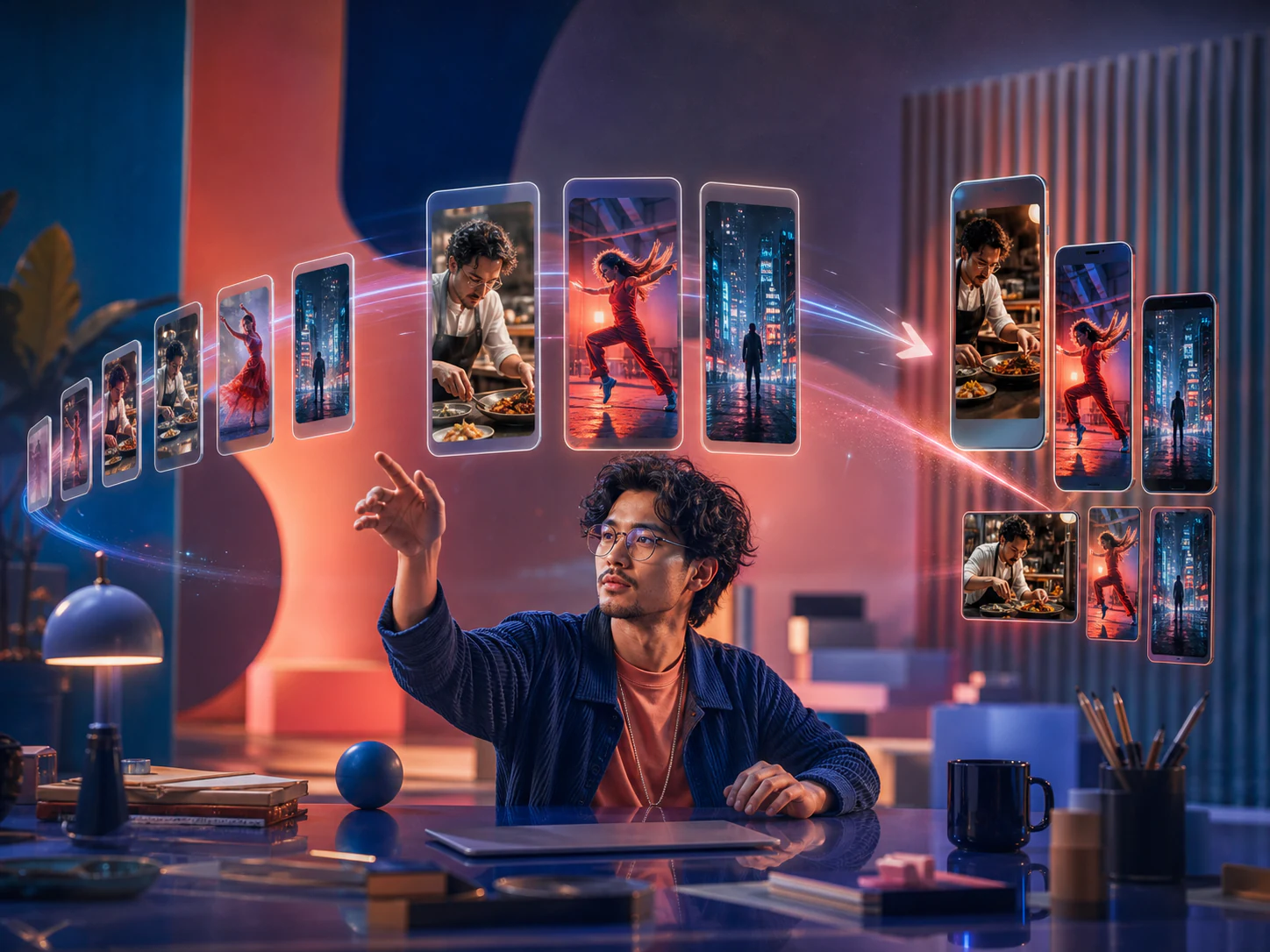
Use an existing product, brand, or launch clip as the motion base, then explore a new palette, environment, texture, or seasonal treatment before committing to a full reshoot.
Give familiar footage a new visual identity

Give familiar footage a new visual identity

Rework creator clips, performance moments, or recurring series into stylized variations while using the original action and timing as context for each Take.

Test a visual treatment on moving footage

Test a visual treatment on moving footage

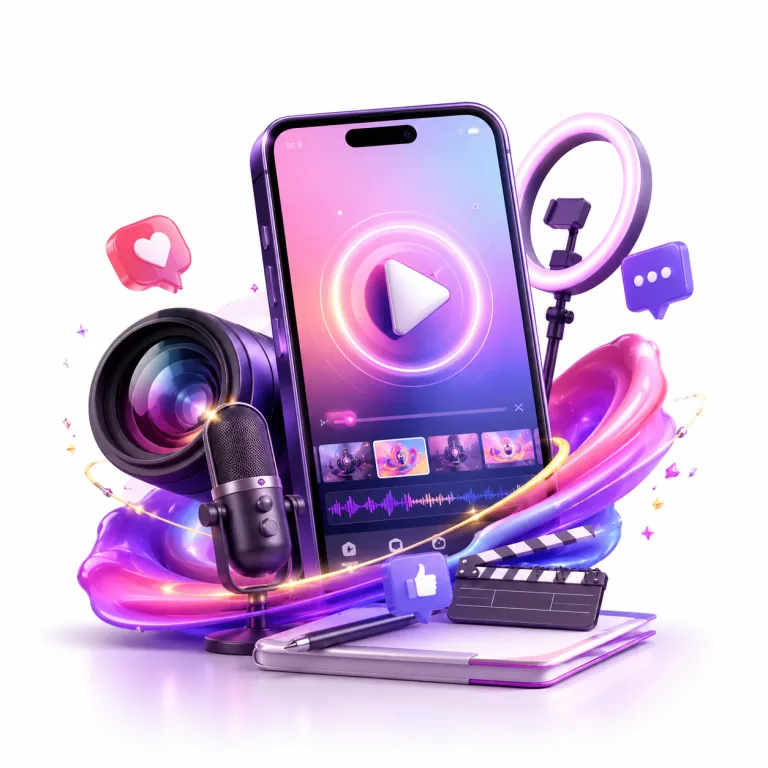
Use a source scene, performance, or previz clip to compare cinematic, illustrative, or atmospheric directions during creative development and review.
Video-to-video workflows for teams with footage to evolve.

  • Creators and social teams

    Creators and social teams

    Restyle recurring clips, performances, and short-form footage while keeping the action your audience already recognizes.

  • Brand and marketing teams

    Brand and marketing teams

    Explore new campaign, seasonal, and channel treatments from approved footage before scheduling another production.
  • Filmmakers and creative studios

    Filmmakers and creative studios

    Test grading, world, texture, and art-direction concepts on moving scenes during previz, pitching, and client review.

What Users Say About ManyO

  • We used to rely on editors to assemble reference clips before every product pitch. Now, with ManyO’s AI text-to-video tool, we can turn product details, character actions, and camera direction into three solid concepts within 30 minutes. Client conversations are much more productive from the start.
    Zhixia Lin

    Zhixia Lin

    Beauty Brand Marketing Director

  • The biggest challenge in cross-border ecommerce is testing fresh creative at speed. ManyO’s Text-to-Video Generator lets us create different opening scenes for each market, then invest in polishing the concepts that perform best. It is genuinely useful for ad creative testing.

    Daniel Wu

    Daniel Wu

    Ecommerce Growth Lead

  • I break a script’s conflict, turning point, and closing beat into individual motion prompts. It does not replace filming, but this AI video generator helps me validate mood, composition, and pacing much faster during short-form drama previsualization.
    Yuan Zhou

    Yuan Zhou

    Short-Form Drama Director

  • Restaurant campaigns often need to move quickly. We use ManyO to create vertical product teasers and seasonal atmosphere videos before scheduling a shoot. Our social content calendar is no longer held up by a lack of footage.

    Yutong Chen

    Yutong Chen

    Restaurant Chain Social Media Manager

  • Our course team has no shortage of expertise; the challenge is making complex ideas feel clear and alive. Text-to-video lets us turn abstract processes into short visual explainers, helping learners engage faster and making our course pages more compelling.

    Bowen Liu

    Bowen Liu

    Online Learning Producer

  • We used to rely on editors to assemble reference clips before every product pitch. Now, with ManyO’s AI text-to-video tool, we can turn product details, character actions, and camera direction into three solid concepts within 30 minutes. Client conversations are much more productive from the start.

    Zhixia Lin

    Zhixia Lin

    Beauty Brand Marketing Director

  • The biggest challenge in cross-border ecommerce is testing fresh creative at speed. ManyO’s Text-to-Video Generator lets us create different opening scenes for each market, then invest in polishing the concepts that perform best. It is genuinely useful for ad creative testing.

    Daniel Wu

    Daniel Wu

    Ecommerce Growth Lead

  • I break a script’s conflict, turning point, and closing beat into individual motion prompts. It does not replace filming, but this AI video generator helps me validate mood, composition, and pacing much faster during short-form drama previsualization.

    Yuan Zhou

    Yuan Zhou

    Short-Form Drama Director

  • Restaurant campaigns often need to move quickly. We use ManyO to create vertical product teasers and seasonal atmosphere videos before scheduling a shoot. Our social content calendar is no longer held up by a lack of footage.

    Yutong Chen

    Yutong Chen

    Restaurant Chain Social Media Manager

  • Our course team has no shortage of expertise; the challenge is making complex ideas feel clear and alive. Text-to-video lets us turn abstract processes into short visual explainers, helping learners engage faster and making our course pages more compelling.

    Bowen Liu

    Bowen Liu

    Online Learning Producer

Video-to-Video Generator FAQs

Answers about source formats, restyle prompts, motion continuity, model controls, credits, and output review.

What is a video-to-video generator?
A video-to-video generator uses an uploaded clip as visual and temporal context, then creates a transformed version guided by your prompt. It is designed for restyling or adapting existing footage rather than generating a scene from text alone.
Can I try video-to-video generation for free?
You can prepare the source and settings before signing in. Generation requires an account and credits; any starter credits and each Take's cost depend on the current offer, selected model, duration, quality, and other settings.
Which source video formats can I upload?
The video-to-video workspace accepts MP4, WebM, and MOV files. The interface shows the current file-size, duration, and model requirements before you generate.
Will the AI preserve the original motion exactly?
The source clip provides motion and timing context, but a generative model can reinterpret details or introduce artifacts. State what must remain recognizable and review every Take for continuity before use.
Which output controls are available?
Quality, duration, resolution, and other controls vary by model. The workspace shows only the settings supported by the active video-to-video model.

Give your source video
a new visual direction.

Upload MP4, WebM, or MOV footage, choose a supported model, review its settings and credit cost, then generate the first variation.